Got a Question?
General help
SailGrib AA, for Alarm Anchor, is an effective wetting alarm application.
- Start the application before wetting, the application records and draws your track on a map.
- Point the anchor position on the track.
- Define the wetting area in a split second.
- Be woken up in case of a confirmed alarm. The application confirms the exit of the wetting area to avoid false alarms.
- Set the alarm strategy between immediate, balanced and conservative.
- Display your Navionics Boating charts
With the Premium option:
- Set an editable hexagonal wetting area on the screen.
- Receive an SMS in case of alarm.
- Display SailGrib WR charts.
- Import the SailGrib WR GPX track you forgot to start the application before anchoring.
The application runs in the background and uses the latest Android techniques to reduce power consumption while maximizing position accuracy.
Permalink- Start the application before mooring, the application records and draws your trace on the map.
- Leave your phone on the chart table.
- Moore without worrying about the application.
- Return to the application. On the track, locate the point corresponding to the boat’s position at the time of anchoring. You should be able to detect it relatively easily on the map thanks to the reverse movement after anchoring.
- Center the map on the anchor point using the target sign in the middle of the screen.
- Press the blue “Anchor” button to fix the anchor position.
- Adjust the radius of the wetting area by moving the green dot to the edge of the zone.
- Fix the wetting area by pressing the “Anchor” button again, it turns green. The alarm is activated.
To make sure that the app will always remain active:
- Put the device on charge
- Do not turn off the screen, its brightness will automatically be dimmed to the minimum. If the screen still turns off, go to the Android Settings/ Display / Sleep menu and check “Never” if the option exists.
- Check that you have good GPS reception.
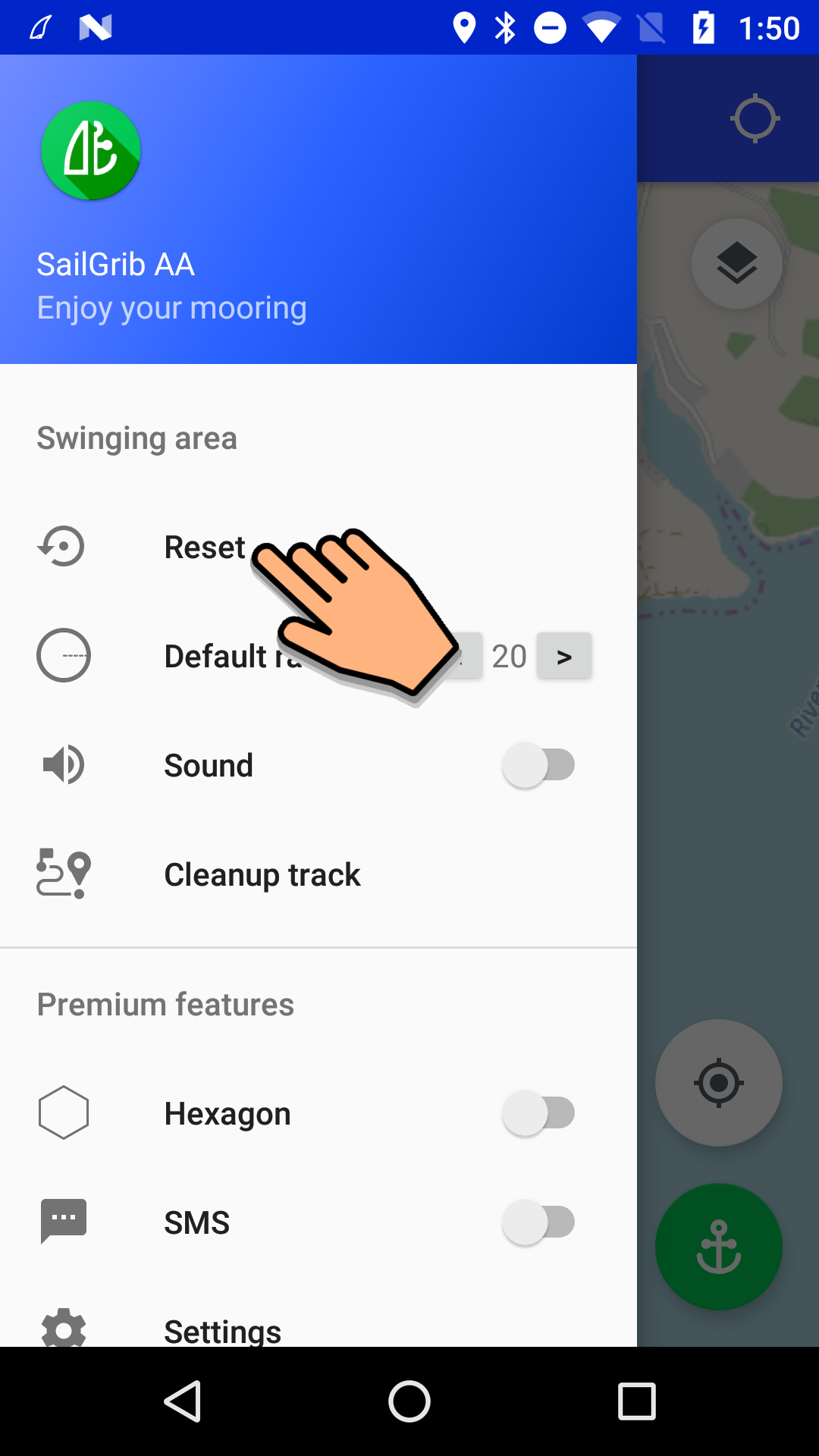
- Open the app menu.
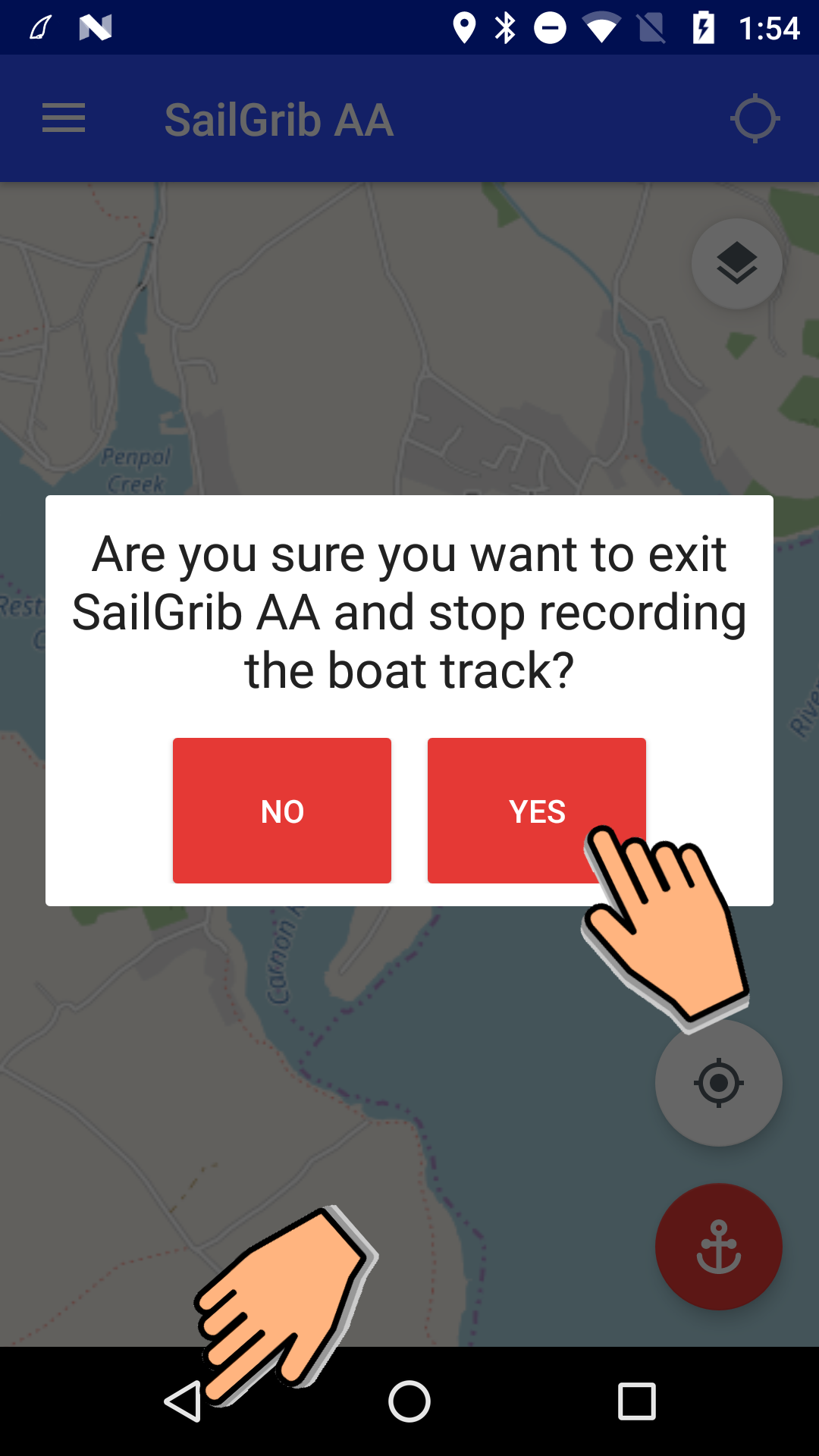
- Press the Reset button. The monitoring is stopped and the Anchor button turns back to red.
The Premium option allows full use of the application.
You can subscribe for 1 month, 1 year or for life.
If you buy a month or year subscription:
- You benefit from a free trial period of 3 days.
- Your subscription will be automatically renewed when it expires.
With the Premium option, you can:
- Define a hexagonal and editable wetting zone on the screen.
- Receive a SMS in case of alarm.
- View SailGrib WR maps.
- Import the GPX trace of SailGrib WR if you forgot to start the application before wetting.
The wetting area can be circular or hexagonal*.
A hexagonal zone will be used if you want to prohibit certain areas or be warned of a change in wind or current direction.
- To adjust the turning radius of a circular area, move the green mark. The turning radius size is displayed at the top of the screen in meters.
- In the case of a hexagonal wetting area, move the 6 points of the hexagon to get the desired shape. The minimum and maximum distances from the edge of the area to the anchor are displayed at the top of the screen.
* You must have purchased the Premium option for this feature.
Permalink- Enter the recipient’s cell phone number address in the international format like +44 7687 661710
- Try sending an SMS.
As soon as an alarm is triggered, an SMS is sent to this phone . The SMS includes all anchorage and alarm data.
An SMS is sent every 20 minutes with the new information. SMS messages continue to be sent until the alarm is stopped.
SMS are sent through an external service that requires an Internet connexion on the sending device.
You must have purchased the Premium option for this feature.
PermalinkTo avoid false alarms, the application waits until it has received a number of consecutive positions before triggering an alarm. You can choose the strategy you want to adopt by knowing that the phone generally receives one position per second:
- immediate
- balanced: 10 messages (default option)
- conservative: 20 messages
To change the strategy:
- open the Menu
- press the Settings button
- select the Alarm strategy menu
- select the strategy
You must have purchased the Premium option for this feature.
PermalinkYou can view SailGrib WR downloaded (. mbtiles) or purchased (. sgtiles) offline maps. To display these maps, SailGrib WR must be installed on the device.
To display these maps:
- open the menu
- press the Settings button
- choose the Offline Maps menu
- select the directory where the map files are located
- check the map to display and return to the map
- press the bottom map selection button in the upper right corner of the screen.
- select Offline
You must have purchased the Premium option for this feature.
PermalinkYou can view NOAA offline charts.
1 - Download the charts
If you have not already downloaded them in SailGrib WR, you can get them directly from the NOAA website.
https://tileservice.charts.noaa.gov/tileset.html#50000_1-locator
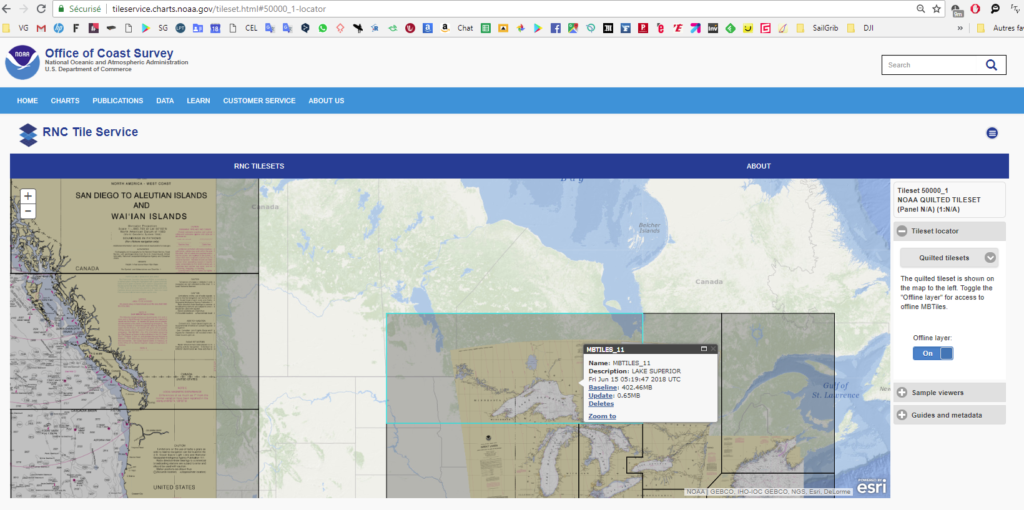
- check the Offline layer switch
- click the zone you want to download
- press the Baseline link and the file is downloaded to your device Download directory
- copy the file from the Download directory to the sailgrib/customchart directory using a file manager like ES explorer
2- Display the NOAA marine charts
- open the menu
- press the Settings button
- choose the Offline Charts menu
- eventually, select the directory where the map files are located
- check the map to display and return to the map
- press the bottom map selection button in the upper right corner of the screen.
- select Offline
You must have purchased the Premium option for this feature.
PermalinkIf you forgot to start the application before mooring but:
- you were sailing with SailGrib WR.
- you were recording the track in GPX format.
Then, you can load this track in order to position the place where you dropped the anchor.
- Open the menu.
- Press the Settings button.
- Select the Track menu.
- Press the Upload GPX File menu.
The file, in GPX format, of the SailGrib WR day track is imported.
Note that, by default, SailGrib WR saves tracksin KML format. You must enable the save function in GPX format: Menu / Preferences / Track Recording / GPX.
You must have purchased the Premium option for this feature.
Permalink