Many parameters can be set in the “AIS Settings” menu to adjust the processing of AIS messages:
- General
- Own ship MMSI: enter your MMSI here to avoid CPA alarms with yourself! An MMSI is a 9-digit integer.
- Filter GPS data period: to reduce the number of messages to be processed in case your Android device would be overwhelmed. This can happen if your GPS id publishing messages with a high frequency.
- Display and process Class B AIS: for the start of races like the Transquadra, the Fastnet or Sidney Hobart, we uncheck this box to avoid false alarms and a cluttered screen.
- CPA - Closest Point of Approach
No CPA calculation for targets at a distance over: these targets do not represent a danger in the near future, do not process them.
Draw CPA segment: a segment will be drawn between the positions of our boat and the AIS target at the CPA. This segment allows you to check at a glance the relative positions of two ships at the CPA. For example we see here that the red target will cross in front of us.
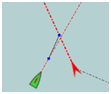
Alarm if CPA is under: an alarm will be triggered if the CPA is under this value. We will adjust this value based on our boat speed, the density of the maritime traffic and our reaction time.
Alarm if the time to CPA is under: An alarm will be triggered if the time to the CPA is below this value. For example, it is probably unnecessary to raise an alarm if the CPA is 0.5 nm but the TCPA is one hour.
Play sound on alarm: An alarm sound will be played at the maximum level of the Android device even if the sound is turned off and or the application is closed as long as the NMEA Service is running.
Play sound on alarm for: the alarm will stop after this time. This prevents the alarm to keep playing if we are blocked at the helm.
Acknowledge alarm for: once you acknowledge an alarm, there will be no new alarm for this target during this period. If, at the end of the period, the target is still in alarm, a new alarm will sound.
Center on target if alarm: this allows you to see immediately which target is the source of the alarm.
- Display
Show vessel names: display the name below the target. If the name has not been received yet and is not in the app database, the target MMSI will be displayed.
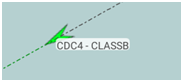
Show vessel speed : display the speed below the target. This is very convenient when racing to check your competitor’s speed.
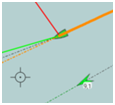
Remove lost targets after: target icons fade out depending on the age of the last message received from the target and disappear at the end of the period set by this parameter.
Show COG predictor arrow for a length of: a line is drawn in front of each target based on its speed and its direction. This parameter defines the length of the segment in minutes. The length of the arrow in front of our boat is also set here.
Show tracks for the past: track of each target is plotted behind each target. This parameter defines the length of the track in minutes.
- Historical AIS positions
- Number of days of AIS positions to keep in the app: to keep the app data size reasonable.