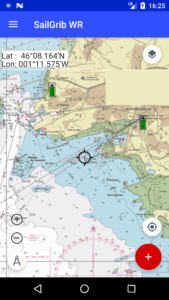
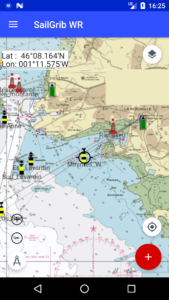
You can create marks on your charts and use them in routes or by activating them in the navigation panel.
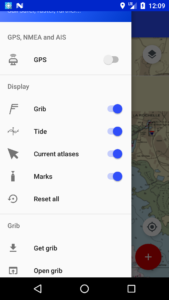
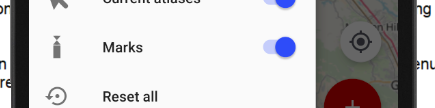
The navigation marks can be panning by toggling the switch in the menu.
To create a mark, long tap on the selected location on the map. The mark is added at this location, a screen opens up where you have to choose the type of mark in the list and enter:
- the name of the mark
- a comment
- the type of light for the mark
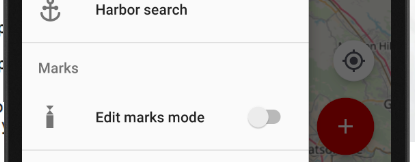
To edit the marks, toggle the Edit marks mode switch in the marks section of the menu.
Marks are saved in CSV files. The CSV files must be in the sailgrib/marks directory on your device. The fields separators are commas; the decimal separator is a point. The name of the mark should not contain spaces. Be careful not to put commas in your comments or the light characteristics.
We have created and saved in the app 3 demo files with the racing marks for:
- The Solent - UK
- La Rochelle - France
- La Trinité - France
Here are the first four lines of the larochelle_beacons.csv file which is loaded by default.

You can import or export marks in the Settings menu. The export option offers you to choose the marks one by one or as a function of the distance of the latter relative to your position.
When creating routes, the application will detect if you add a point near a mark and “paste” your new waypoint to this mark by copying the name and coordinates data.