You have a race file, send it to your Gmail address, save it on your Android device.
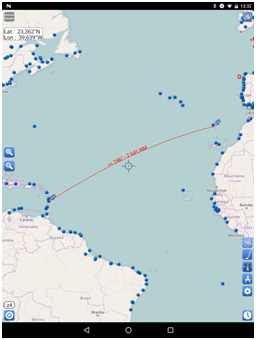
Create a route for the racecourse. Here we create the route for the second leg of the Transquadra between Madeira and Ilet Cabri at the southern tip of Martinique. We call it TQS2. This route will be used to establish the rankings during the race.
Go in the Settings menue and press Race tracking
Check Track a race
Pres Load a race file
The list of the race files found in the Download and SailGrib/ is displayed.
Choose the file format to import between Adrena, expedition or Maxsea.
If Adrena is chosen, only .dcc files are listed, otherwise all the .txt are listed.
We will favor the Adrena format, which is more complete.Select the file to be imported by pressing it.
Press the Activate a race button.
The race boats are loaded and displayed.Press the Set race detailsbutton
- Select the route created to define the route.
- Select the waypoint that will be used to establish the rankings.
- Select the day and time of departure. The time is to be entered in UTC time.
- Choose the reference boat for performance analysis between rankings.
- Press the Android Back button at the bottom left to exit this screen.
To select the boats you want to display on the map, you can:
- Check the boats one by one
- Filter the boats by entering a text in the “Filter” line, then clicking the “All” button. All filtered boats will be added to the list of checked boats.