Got a Question?
Charts
No, Navionics chars for SailGrib WR are stored in a protected SailGrib WR directory in the application’s main memory. You don’t have access to it.
PermalinkYes, you can choose the directory for the charts in MBTiles format, including on an external SD card.
PermalinkYou will find the Geogarage catalog by following this link : https://www.geogarage.com/en_EN/page/catalog
The purchase of subscriptions is done on the Geogarage website. : https://accounts.geogarage.com/en/
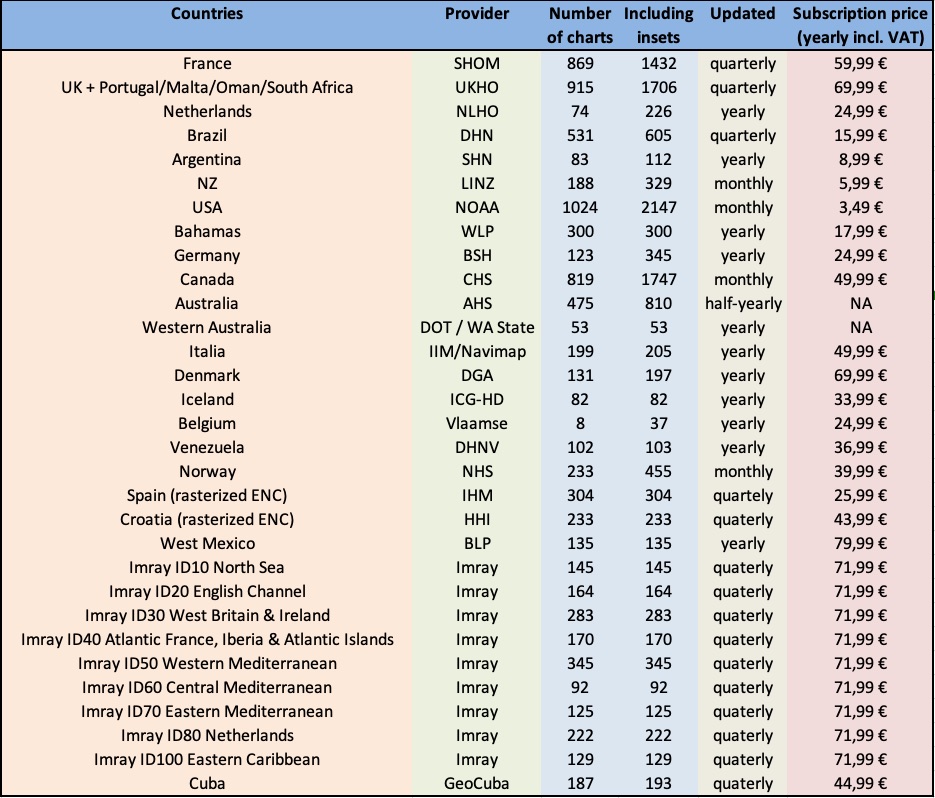
L’utilisation des cartes est très simple:
- Sur le site de GéoGarage
- Créer un compte Géogarage
- Souscrire à un abonnement
- Dans SailGrib WR
Visionez un petit tuto ici : https://youtu.be/b4mSCydOfVw- Aller dans Préférences > Cartes
- Entrer l’adresse mail et le mot de passe utilisés pour créer votre compte GeoGarage
- Choisir le service hydrographique dont on veut afficher les cartes
- Retourner sur l’écran principal de SailGrib WR et choisir la couche GeoGarage
Les cartes se chargent à la volée et sont stockées dans le cache cartographque de l’application. - Télécharger toutes les cartes de votre zone de navigation
- Aller dans Préférences > Cartes et cliquer sur “Télécharger des cartes”
- Choisi le niveau de détail souhaité. Le niveau cotier conviendra pour la plupart des zones de navigation cotière.
- Déplacer la carte et zoomer, la zone est définie par le carré de couleur
- Cliquer sur le bouton Télécharger
- Un atlas de cartes est créé sur les serveurs de GeoGarage puis téléchargé sur votre appareil
- Retourner sur l’écran principal de SailGrib WR
Navionics charts for SailGrib WR are stored in a protected SailGrib WR directory in the app’s main memory. It may not be optimal, but that’s how sdk Navionics was coded.
PermalinkNo, Navionics chars for SailGrib WR are stored in a protected SailGrib WR directory in the application’s main memory. You don’t have access to it.
PermalinkOn the GeoGarage website : https://accounts.geogarage.com/en/
- Create a Geogarage account
- Subscribe to a subscription
To date, the Navionics Android sdk does not offer a quick and easy update function.
The only solution we found was to remove the data and cache from the app and then download the charts again…
To remove the data and cache from the app, do the following:
- Open the device Settings app
- Tap Apps
- Scroll down to SailGrib WR and tap Storage
- Press Clear Data and Clear Cache (If “Clear Data” is not displayed, tap Manage Space.)

Navionics charts for SailGrib WR are stored in a protected SailGrib WR directory in the app’s main memory. It may not be optimal, but that’s how sdk Navionics was coded.
Permalink- Go to Preferences > Maps
- Enter the email address and password used to create your GeoGarage account.
- Select the hydrographic service whose charts you want to display
- Return to the SailGrib WR main screen and choose the GeoGarage layer.
Maps load on the fly and are stored in the application’s map cache.
To date, the Navionics Android sdk does not offer a quick and easy update function.
The only solution we found was to remove the data and cache from the app and then download the charts again…
To remove the data and cache from the app, do the following:
- Open the device Settings app
- Tap Apps
- Scroll down to SailGrib WR and tap Storage
- Press Clear Data and Clear Cache (If “Clear Data” is not displayed, tap Manage Space.)
- Go to Preferences > Charts and click on “Download Geogarage charts”.
- Choose the desired level of detail.
- The Offshorelevel will be used to load large areas. Attention, detail maps will not be loaded.
- The coastal level will be suitable for most coastal navigation areas.
- The Harbor level loads detail maps. It is very rarely necessary to use it.
- Move the map and zoom, the area is defined by the square of color
- Click on the Download button
- A map atlas is created on the GeoGarage servers and then downloaded to your device in the sailgrib/geogarage directory in the main memory of your device.
This atlas is yours, you cannot share it with your friends.
You can, on the other hand, copy it to another of your devices.
Yes you can, here are two screenshots of the mooring between Tresco and Bryher in the Scilly islands.
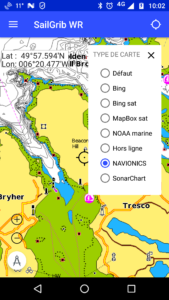
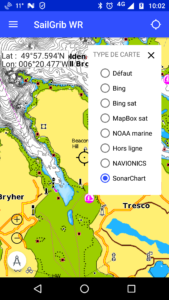
No, the Geogarge maps for SailGrib WR are stored in the sailgrib/geogarage directory of your device.
PermalinkYes you can. Go to Settings > Charts and pick the number of units for the “Depth area visibility threshold”.
This is very convenient. If you boat draught is, for example, 1.9 meters, set the parameter to 2 meters. Then, if the chart is white, you are always Ok, if it is blue, you have to do your tide calculation.
Here are two screenshots of the mooring between Tresco and Bryher in the Scilly islands with a parameter set at 5 meters and another set at 2 meters.
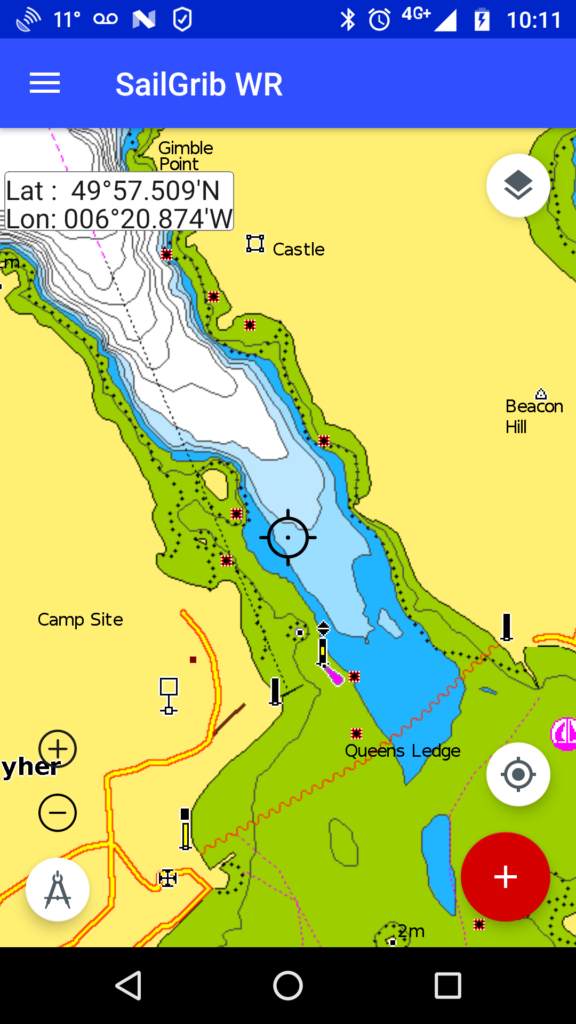
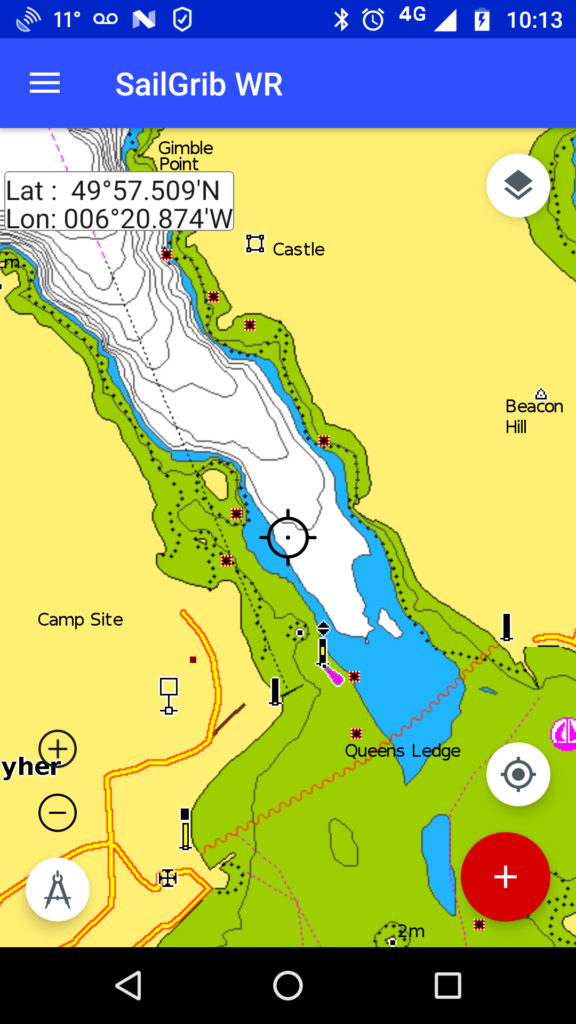
Yes you can, here are two screenshots of the mooring between Tresco and Bryher in the Scilly islands.
- Go to Preferences > Charts and click on “Download GeoGarage charts”.
- Already downloaded zones are displayed
- A message is displayed in the center of the zone if an update is available.
- Click on the dot in the center of the area and then click on the Update button.
Yes you can. Go to Settings > Charts and pick the number of units for the “Depth area visibility threshold”.
This is very convenient. If you boat draught is, for example, 1.9 meters, set the parameter to 2 meters. Then, if the chart is white, you are always Ok, if it is blue, you have to do your tide calculation.
Here are two screenshots of the mooring between Tresco and Bryher in the Scilly islands with a parameter set at 5 meters and another set at 2 meters.
- Go to Preferences > Charts and click on “Download GeoGarage charts”.
- Already downloaded zones are displayed
- Click on the dot in the center of the area and then click on the Delete button.
No, you need either:
the free version of SailGrib WR with the Premium option
the paid version of SailGrib WR
and a valid GeoGarage subscription.
PermalinkRequest a password reset : https://accounts.geogarage.com/account/password/reset/
- Enter your email address.
- Click on the button “Reset my password”..
- If this email address is recognized, GeoGarage will send you an email that will allow you to re-initialize it.
- If it is not recognized, you took your subscription with another email address, enter the one you used to take your subscription.
If you encounter difficulties to reset your password, contact Geogarage at the following address: contact@geogarage.com.
PermalinkNMEA and AIS
No, this is not possible, you must be connected via WiFi.
PermalinkYes, you must install an app like Bluetooth GPS and designate it as the mock location provider in Android.
This works perfectly and saves the mobile phone battery.
You can use an ultra-precise bluetooth GPS that picks up Galileo satellites and supports EGNOS technology in Europe and WAAS in the United States. You should get an accuracy of less than one meter. The best one today is the GNS2000 Plus that you will find for about 100€.
To use it, you need:
- load a Bluetooth GPS application
- Allow Developer Mode: In the Android menu, go to: System / General Settings / About Device / Tap up to seven times the Build Number to unblock Developer Options.
- in the Options menu for developers, choose Bluetooth GPS as the “dummy position provider”.
- then, like any Bluetooth device, pair the GPS and the phone.
You need to uncheck the mobile data on your phone.
PermalinkCheck the following points:
- You are connected to the WiFi network broadcasting NMEA data
- Mobile data are off if you use a phone
- You have allowed mock locations and SailGrib WR is the mock location provider
- You have activated “NMEA and AIS Connection” in “NMEA Settings”
- You have selected the correct NMEA data source. If your device is not referenced, you have filled in the 3 fields: protocol, IP address and port.
- Stop and restart the NMEA service in “NMEA Settings”. You should see the last 10 NMEA messages received.
General questions
Since March 2021, you have the choice between 5 sources :
- GeoGarage
Geogarage offers a very large catalog of raster nautical charts derived from digital charts provided by the International Hydrographic Services.
These charts, updated very frequently, are available as annual subscription to a hydrographic service such as SHOM, UKHO, NOAA…
Note that the same subscription can be used in SailGrib WR on your Android devices (phone, tablets and Chromebooks) and in Weather4D on your iPhones and iPads. - NavionicsYou have a Navionics Boating subscription? Use your Navionics charts directly in SailGrib WR at no extra cost.
- Chart atlases in SGTiles formatThese atlases of raster charts purchased as in-app purchase before March 2021 come from hydrographic services such as SHOM and UKHO.
These atlases, which are difficult to update, are no longer sold in the app. They have been replaced by the GeoGarage service. - Chart atlases in MBTiles format proposed in the applicationCes atlas de cartes raster, principalement de la NOAA, sont proposés gratuitement dans l’application.
They are updated by NOAA very frequently. - Your own charts in MBTiles formatThis is the map format specified by MapBox. (https://docs.mapbox.com/help/glossary/mbtiles/)
Many tools are available on the Web to create charts in this format.
- Ajuster le temps du compte à rebours en fonction des instructions de course
- Pointer le bateau comité
- Pointer la bouée
- Déclencher le comte à rebours
Le compte à rebours s’affiche en haut de l’écran. La distance à la ligne s’affiche en bas de l’écran
- Pour ajuster la position du bateau ou de la bouée, appuyez sur un bouton et confirmez la mise à jour.
- Pour synchroniser le chronomètre, appuyez sur le bouton et confirmez la synchronisation. Le chronomètre sera synchronisé à l’instant où vous avez appuyé sur le bouton du chronomètre, pas à celui où vous confirmez l’action.
Installation
Any recent Android device (Android 8.0 or higher) of good quality with a GPS is suitable.
The app is compatible with Android 5.0 or higher. Android 5 was released at the end of 2014, it is better to buy more recent equipment.
We recommend using a tablet, it is much more comfortable.
Here are 3 tablets at the good value for money :
- SailProof SP08X or SP08S from 2023. The first rugged tablets dedicated to sailors and boaters: 8 inches, waterproof and really resistant, Galileo GPS and very readable in sunlight, big battery around 750€ (our first choice and installation on board). With the promo code GRIBPROOF, you get 5% discount on the whole SailProof website.
- Samsung Galaxy Tab Active 4 from 2022, 8 inches waterproof, Galileo GPS and sunlight readable, around 700€ (our second choice).
- Samsung Galaxy Tab A8 from 2021, 10,5 inches screen, around 240€. The simplest one with good quality, for use at the chart table.
- Check the upcoming ones here : http://tabletmonkeys.com/new-tablets/
or the just released ones here : http://tabletmonkeys.com/newest-tablets/
In our opinion, the best mid-range Android phone is the Google Pixel 6a from Q3 2022.
Chromebooks and Chromeboxes, computers running Chrome OS. SailGrib WR is extremely fast on these devices.
- The Acer Chromebox | Chromebox CXI3 Intel® Core™ i3-8130U 8GB - 64GB very fast, about $500. Our on-board installation.
- the Acer | Chromebook 714 for Work CB714-1W-P502 with its waterproof keyboard, around 520€.
- Be sure to register your new Android phone with Google using the same Gmail address.
- Open the Play Store app
- Search for SailGrib WR or follow this link
https://play.google.com/store/apps/details?id=com.sailgrib_wr.paid - Install the app
Yes, you can install the app on as many devices as you want as long as they are registered with Google using the same Gmail address.
Permalink- Subscribe to the Premium option for 1 month or 1 year.
Open the drawer menu and press the Upgrade button to do so.
Note that subscriptions are renewed automatically. - If you want to have a lifetime licence, you have 2 equivalent options:
- Purchase the paid version on the Play store:
Open the Google Play Store application by following this link :
https://play.google.com/store/apps/details?id=com.sailgrib_wr.paid - Buy the lifetime Premium option in the Free version.
Once you have purchased the lifetime Premium option, you are all set.
Do not try to install the paid version of the app.
If you do you will be prompted to pay again.
- Purchase the paid version on the Play store:
The procedure is the same as for any other subscription taken on the Google Play Store as described here.
Cancel a subscription
Uninstalling the app will not cancel your subscription.
- On your Android phone or tablet, open the Google Play Store
.
- Check if you’re signed in to the correct Google Account.
- Tap Menu
Subscriptions.
- Select the subscription you want to cancel.
- Tap Cancel subscription.
- Follow the instructions.

If the Play Store asks you to buy the application when you have already done so in the past with the same Gmail address, it’s probably because the data in the Play Store app is corrupted. To repair that:
- Open your device’s Settings app
.
- Tap Apps & notifications
See all apps.
- Scroll down and tapGoogle Play Store
- Tap Storage
- Next, tap Clear data.
- Re-open the Play Store & try your download again.
If this doesn’t solve the problem, try following Google’s advice by clicking on this link.
PermalinkThe number of days can be changed in the Grib query parameters.
If the number of days automatically returns to 2, you are still using the free version. Uninstall this free version and use the paid version. Everything should work fine.
PermalinkFirst, confirm that:
- on your tablet, where you purchased the Premium option, the Premium features are working fine.
- your phone is registered with Google with the same Gmail address as the one used on your tablet.
If that is the case, it’s probably because the data in the Google Play Store app are corrupted. To repair that:
- Open your device’s Settings app
- Tap Apps & notifications
- Scroll down and tapGoogle Play Store
- Tap Storage
- Next, tap Clear data.
- Re-open the Play Store & try your download again.
If this doesn’t solve the problem, try following Google’s advice by clicking on this link.
PermalinkUnfortunately, you are not alone in facing this problem.
The best solution I found is to ask a family member or friend in an authorized country to connect on a PC to Google Play with the gmail account you used to register your Android device and ask them to purchase the app. This one will then be automatically installed on your Android when your device will be connected to the Internet.
Here is the link to the app on the Play store: https://play.google.com/store/apps/details?id=com.sailgrib_wr.paid
And the list of authorized countries: https://support.google.com/googleplay/answer/143779?hl=en
You can possibly perform this procedure by taking control of the PC remotely using a service like TeamViewer.
Otherwise, you can buy the application from a PC via a proxy to make Google believe you are an authorized country.
PermalinkYes, you can upload it here.
It is a pdf printout of the online Help, FAQs and tips. We highly recommend to upload it if you sail offshore with no Internet connexion.
PermalinkThe free version is limited to :
- access to 2 days weather forecast only
- access to the GFS model only on SailGrib servers
- no current atlases for European coasts
- routings of less than 50 nautical miles
- 10 routings between 50 and 150 nautical miles
- no navigation panel
- no NMEA or AIS data
- no nautical charts
- no race tracking
Starting with V3.0, your device must run Android 5.0 or above.
If you have an Android 4.4 device, you can still run V2.4.6 but you will not be able to update it or reinstall it from the Play Store. I highly recommend that you make a backup of the app using an app like App Backup Restore.
PermalinkNo, it is not possible to buy the app outside the Google Play Store.
PermalinkNo. Today, SailGrib WR only runs on Android:
- phones and tablets (Samsung, Sony, Motorola, Huwei, LG,…)
- Chromebooks supporting the Play Store. You will find the list by following this link
On a PC, you can install an Android emulator that will allow you to install SailGrib WR but you will have a degraded experience of the app. You will find a list of Android emulators by following this link.
PermalinkYes! We publish 3 other app for boaters and racers:
- SailGrib, our weather and tide app.
- SailGrib AA, our anchor alarm app. With this app the position of your boat will be constantly monitored. In the event of a confirmed alarm, an alarm will sound and you will receive an SMS. Leave a phone plugged into your boat and you have an anti-theft alarm!
- SailGrib RS, our regatta start app. With this app and its simplistic design, you’ll know in real time where you are positioned in relation to the line and whether you’re early or late for the start of the regatta.
Visit our Google Play Store page to install them!
PermalinkYes!
- Directly in the app, go to the menu and press Quick Start
- Watch the Quick Start Guide and other videos on our YouTube channel.
Before contacting us, please read the help and FAQs carefully. Most of the time, you will find the answer to your questions.
If you have not found the answer, send us an email using the Contact us menu of the app.
We usually answer questions very quickly. If not, we’re probably at sea testing the latest developments!
Thank you for your patience.
PermalinkWeather
The free version is limited to :
- access to 2 days weather forecast only
- access to the GFS model only on SailGrib servers
- no current atlases for European coasts
- routings of less than 50 nautical miles
- 10 routings between 50 and 150 nautical miles
- no navigation panel
- no NMEA or AIS data
- no nautical charts
- no race tracking
The number of days can be changed in the Grib query parameters.
If the number of days automatically returns to 2, you are still using the free version. Uninstall this free version and use the paid version. Everything should work fine.
Permalink| Grib update schedule by runtimes (UTC) | |||||||
| name | data | provider | type | 00Z | 06Z | 12Z | 18Z |
| GFS 0.25° | wind | NOAA | global | 5:40 | 11:40 | 17:40 | 23:50 |
| GFS 0.50° | wind | NOAA | global | 5:35 | 11:35 | 17:35 | 23:45 |
| GFS 1.00° | wind | NOAA | global | 5:50 | 11:50 | 17:50 | 0:00 |
| Arpège Monde 0.50° | wind | Meteo France | global | 4:00 | 15:35 | ||
| ICON GLOBAL 0.125° | wind | DWD | global | 4:00 | 16:00 | ||
| ICON GLOBAL 0.25° | wind | DWD | global | 4:00 | 16:00 | ||
| ICON GLOBAL 0.50° | wind | DWD | global | 4:00 | 16:00 | ||
| ICON GLOBAL 1.00° | wind | DWD | global | 4:00 | 16:00 | ||
| ICON Europe 0.07° | wind | DWD | regional | 4:15 | 10:15 | 16:15 | 22:15 |
| Arpège Europe 0.1° | wind | Meteo France | regional | 5:00 | 17:45 | ||
| Arôme 0.025° | wind | Meteo France | regional | 3:10 | 12:00 | 17:00 | 23:55 |
| Arôme HD 0.01° | wind | Meteo France | regional | 5:30 | 11:30 | 17:30 | 23:30 |
| Arôme Antilles 0.025° | wind | Meteo France | regional | 1:30 | 7:30 | 13:20 | 19:30 |
| NAM CONUS 0.1° | wind | NOAA | regional | 3:25 | 9:25 | 15:25 | 21:25 |
| NAM CONUS NEST 0.05° | wind | NOAA | regional | 3:15 | 9:15 | 15:15 | 21:15 |
| HRR CONUS 0.025° | wind | NOAA | regional | 0:40 | every H+40 | ||
| WW3 Global 0.5° | wave | NOAA | global | 5:15 | 11:15 | 17:15 | 23:15 |
| Copernicus Global 0.08° | current | Copernicus | global | 12:35 | |||
| Copernicus Global MET 0.25° | current | Copernicus | global | 12:45 | |||
| Copernicus IBI 0.03° | current | Copernicus | regional | 4:45 | |||
| Copernicus ENWS 0.06° | current | Copernicus | regional | 12:55 | |||
| Copernicus BALTIC 0.2° | current | Copernicus | regional | 10:45 | |||
| Copernicus MED 0.06° | current | Copernicus | regional | 3:45 | |||
| NCOM Alaska - N. Calif 0.03° | current | NCOM | regional | 16:05 | |||
| NCOM Caribbean 0.03° | current | NCOM | regional | 16:10 | |||
| NCOM Hawaii 0.03° | current | NCOM | regional | 16:15 | |||
| NCOM South California 0.03° | current | NCOM | regional | 14:05 | |||
| NCOM US East Coast 0.03° | current | NCOM | regional | 11:05 |
Only the GFS model has forecasts beyond 8 days.
To obtain more than 8 days of forecasts, you must either select in the Grib request menu:
- Source SailGrib and one of the GFS models
- Source SailDocs and the GFS model.
And ask for up to 16 days.
PermalinkBy default, the area that the app will retrieve and display corresponds to the map you have on the screen.
You can pan and zoom it.
You can also request an ad-hoc zone.
To do so:
- Long press the screen
- Press the Set grib zone menu
- Adjust the zone by moving the upper left and lower right corners
No, SailGrib cannot read zygrib files.
PermalinkNo, SailGrib cannot read files in grib1 format
PermalinkGrib files weather data are derived from mathematical models. They’re not always accurate!
In addition, it is necessary to match the chosen model with your type of navigation.
The GFS model covers the entire earth with a grid of 0.25° (about 15 NM). It will not be able to take into account local phenomena. And even offshore, the GFS could be wrong! They’re just forecasts.
One of SailGrib’s strengths is that you have access to several models!
For a coastal navigation, you can for example choose the high resolution models;
- in the US, the NAM models from the NOAA.
- in Europe the Arpège Europe model from Météo France.
- in France, you can get the Arôme model from Météo France, a very high resolution model.
You probably picked the wrong model.
Choose SailGrib as source and model
- Choose SailGrib as the source and the ww3_global model or SailDocs and the GFS model.
- In both cases, check the “waves” parameter.
- In the grib display menu, also check one of the “waves” options.
install the iridium Go! app on your device.
install link: https://play.google.com/store/apps/details?id=com.iridiumgoinstall the iridium Mail and Web app as well.
https://play.google.com/store/apps/details?id=com.iridium.mailandwebRegister with iridium to get a specific iridium email address
registration link : https://www.iridium.com/mailandweb/in SailGrib WR, you will get the grib file through a mail exchange.
You have to use SailDocs (or Great Circle) as the source of your grib files.
The Source is set in the grib request parameters.
In practice, to request a grib:- set your Source to SailDocs
- set your model generally to GFS
- check at the bottom of the screen the box “Make your request with iridium”
- enter your iridium email address just below
- Request the grib. A mail is prepared and sent to the iridium Mail and Web app.
- Go to the iridium Mail and Web app and send the email through the iridium network
- wait for 5 minutes
- Get your mails in the iridium Mail and Web app, you should receive a mail from SailDocs in your mailbox. Show all the details of the mail: tap the Menu button and show all details. The attached file will be shown with a download button.
- Save the grib file which comes as an attachment.
- Open the file in SailGrib.
Be careful that the max size should be around 70kb for the grib file.
To get the entire Atlantic, set the grid resolution to 2.5° with a 6 hour timestep or 1° and a 12 hour timestep
And most importantly, **train before you set sails.**First with WiFi, to make sure you set the correct parameters to get a grib file size of 50kb or less. Second, with the Go! to get an actual file.
If you do not have an external antenna for the Go!, it will work better when the Go! is outside with a clear sky view.
PermalinkWeather routing
Access to the included current atlases, that permit the integration of the tidal currents along the European coasts for weather routing, is restricted to the paid version of SailGrib WR.
Upgrade!
PermalinkThe access to the Copernicus Mercator Ocean currents grib files is restricted to the paid version of SailGrib WR.
Upgrade!
PermalinkYes, if you have the Paid version or the Premium option, SailGrib WR comes with the iPolar module developed by KND for iOS .
KND is a world leader in sailing performance analysis with over 15 years of experience in the field of speed prediction programs (VPP) for racing yachts.
We thank Dimitri Nicolopoulos-Salle, founder of KND, for giving us access to the iPolar code.
iPolar computes the performance polars of a given boat as a function of a reduced set of parameters:
Length Overall (LOA)
Waterline Length (LWL) if unknown, iPolar will make the assumption that LWL is 95% of LOA
Displacement
MainSail Area
Jib Area
Symmetrical spinnaker area (optional)
Asymmetrical spinnaker area(optional)
Limitations of iPolar:
Currently only handles monohulls
LOA ranging from 8 to 20m
Accuracy:
iPolar is a very simple Velocity Prediction Program (VPP) which predicts the polars of a boat based on a very limited range of parameters: length, displacement and sail area .
This simplicity implies some restrictions : iPolar is meant to predict reasonably accurately polars for production cruisers and cruiser racers - it is currently limited to mono-hulls.
For boats significantly outside of the iPolar parameter range and for racing polars accuracy, the use of more complex VPP tools is required. KND-SailingPerformance uses the NorthSails VPP, developed through several cycles of America’s Cup, relying for each boat on the generation of a large matrix of hydrodynamic forces (through Computational Fluid Dynamics or CFD methods) and advanced sails models. In case you would be interested in such a VPP for your yacht, contact us directly.
https://www.youtube.com/watch?v=0aYOKWHrTfU
PermalinkWhen you run a routing, do not start or end inside a bay. If you wish to make a routing ending in the bay of Ajaccio, add a waypoint at the entrance of the Bay South of the “Sanguinaires Islands . The routing should work.
Permalinkbroad question… with many potential answers.
Here are the most likely:
- The wind does not match forecasts.
- The boat speed does not correspond to the polar: optimistic polar, navigation in “cruise” mode, dirty hull, worn sails, sea state… you can edit the polar or simply play with the 2 efficiency parameters.'
- do not forget the maneuver’s time at the exit and at the entrance of the harbor or anchorage; I typically add 1 hour.
- presence of current: did you load a current grib?
You have 2 possibilities:
- move the waypoint directly on the screen.
- Make sure the route is loaded
- Long press the screen and select Manage route /Edit route mode
- Press any waypoint and hold it and move it.
- Edit the waypoint coordinates
- Make sure the route is loaded
- Long press the screen and select Manage route /Edit route mode
- Press the Edit button
- Press a waypoint
- Edit its coordinate
- Press Ok
- Press Open
You have 3 possibilities:
- Long press the small square summarizing the routing in the top right. A menu pops up, unload the routing.
- Go to the menu, press Load Routing. Select the one or ones you want to display.
- You can reset all the loaded data (grib, route and routings): long press the screen and choose the Reset all menu.
Yes since the Boating app was updated in July 2019.
- Export the route from the Boating app, a list of applications is displayed.
- Choose your file manager and save the route in the download directory of your Android device.
If you do not have a file manager, install the Mi File Manager app - Rename the file if you want.
- In SailGrib WR, long tap on the screen > Manage Routes > Import a route in GPX format and choose the file to import.
No, Navionics does not allow route imports.
PermalinkA SailChart in SailGrib WR is a table that indicates the optimal sail for a given wind speed (TWS) and wind angle (TWA).
The optimum sail is then displayed in:
- weather routings
- the measuring tool to determine, for example, the best sail on the next leg
- the quick measuring tool
Yes, the algorithm can evaluate if the boat is sailing in a “crossed sea” and, if so, degrade the polar by a certain coefficient.
To consider that the sea is crossed, we need the following conditions:
- the significant height of the total sea is greater than a certain threshold
- the angle between the direction of the swell and the wind waves between 45° and 135°.
You can also use the following method:
Load a wave grib file (ww3 model) and study the waves forecast. If the waves are too strong, you can either:
- limit the maximum wind speed
- create restricted areas
- add a waypoint to your route
- use pivot points to avoid these areas
No go zones are polygons created by the user that will be avoided by the routing algoritm if selected.
They are frequently used to avoid sailing in Traffic Separation Scheme (TSS), avois shalow or danger areas…
To create the no go zones:
I recommend that you first select the option to enter waypoints and other “points” on the map at the center of the screen as opposed to where you pressed the screen. The input, if less natural, is more precise. To do do go to the General section of the Settings menu and select the Waypoints at screen center option.
center the map where you want to start your no go zone
long press the screen
select the “No go zone” menu
select the “Create a no go zone” menu
enter a name for the no go zone or leave the default one and press Ok . The first point is created
move the map where you want to continue your no go zone
long press the screen and select “Add a point to the no go zone”
repeat the 2 previous action until your no go zone is complete
Then in the routing menu, make sure you have checked the “No go zones” option.
Permalink